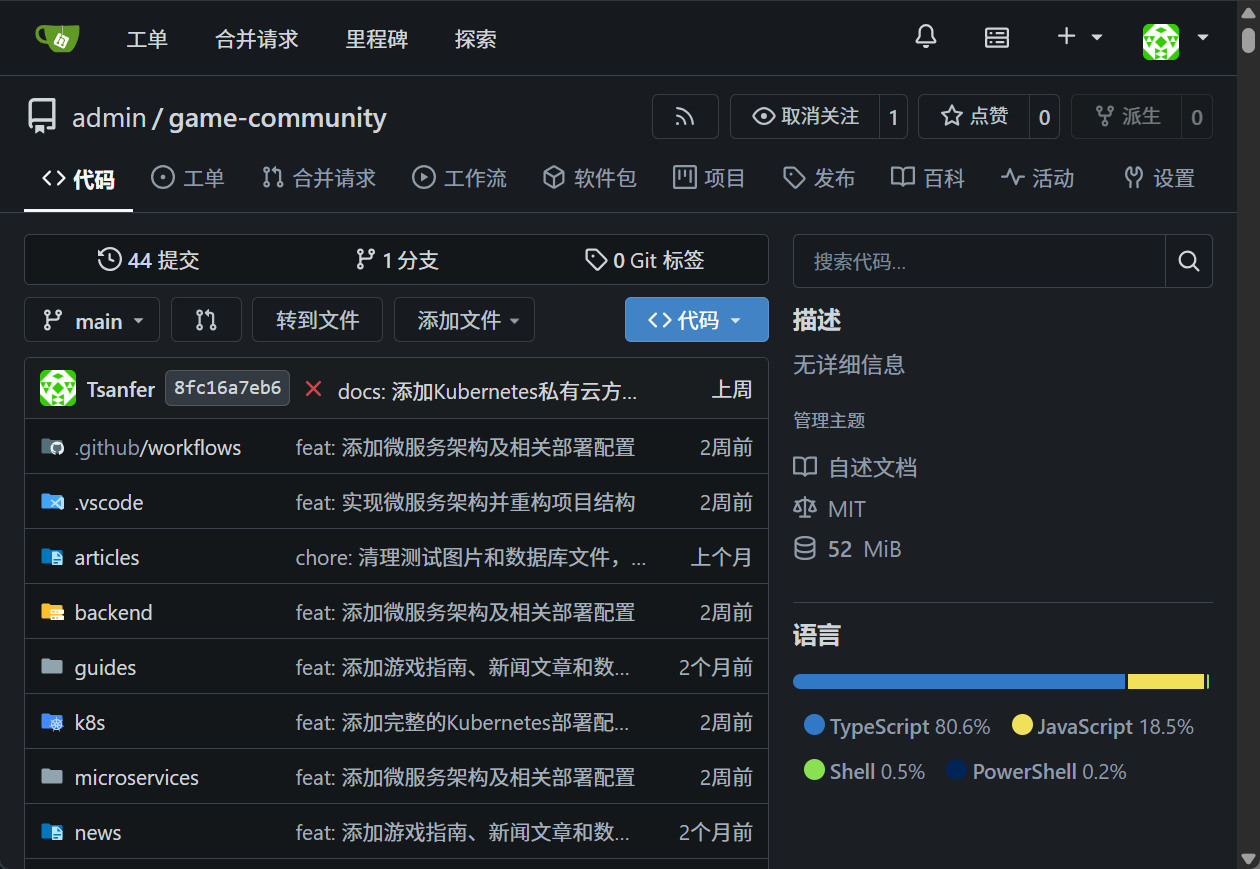
部署自托管 Gitea 代码仓库
代码仓库部署于 CI/CD 虚拟机
参考链接:关于Gitea | Gitea Documentation
数据库准备(可选)
此处可选 PostgreSQL 作为数据库
创建 Gitea 数据库
数据库名称:
giteadb用户名:
gitea配置 Gitea 数据库
\connect giteadb;
ALTER SCHEMA public OWNER TO gitea;
-- GRANT USAGE ON SCHEMA public TO gitea;
方式一:使用 Docker 安装
文件位置:/root/gitea/docker-compose.yml
services:
  server:
    image: gitea/gitea:1.25.5
    container_name: gitea
    environment:
      - USER_UID=1000
      - USER_GID=1000
    restart: always
    networks:
      - gitea
    volumes:
      - ./gitea:/data
      - /etc/timezone:/etc/timezone:ro
      - /etc/localtime:/etc/localtime:ro
    ports:
      - "3000:3000"
      - "222:22"

networks:
  gitea:
    external: false
安装 Gitea
cd /root/gitea
sudo docker compose up -d && sudo docker compose logs -f
方式二:二进制文件安装
部署 Gitea
下载 git
(
sudo apt -y update
sudo apt -y install git
git --version
)
下载 Gitea
GITEA_VERSION="1.25.5"

wget -O gitea https://dl.gitea.com/gitea/$GITEA_VERSION/gitea-$GITEA_VERSION-linux-amd64
chmod +x gitea
服务器设置
创建用户
gitadduser \ --system \ --shell /bin/bash \ --gecos 'Git Version Control' \ --group \ --disabled-password \ --home /home/git \ git创建工作路径
mkdir -p /var/lib/gitea/{custom,data,log}
chown -R git:git /var/lib/gitea/
chmod -R 750 /var/lib/gitea/
mkdir /etc/gitea
chown root:git /etc/gitea
chmod 770 /etc/gitea
临时设置工作路径
export GITEA_WORK_DIR=/var/lib/gitea/复制二进制文件到全局位置
cp gitea /usr/local/bin/gitea添加 zsh 自动补全(未验证)
gitea completion zsh > /usr/share/zsh/_gitea
创建服务自动启动 Gitea
配置文件:
/etc/systemd/system/gitea.service[Unit] Description=Gitea (Git with a cup of tea) After=network.target ### # Don't forget to add the database service dependencies ### Wants=postgresql.service After=postgresql.service ### # If using socket activation for main http/s ### # #After=gitea.main.socket #Requires=gitea.main.socket # ### # (You can also provide gitea an http fallback and/or ssh socket too) # # An example of /etc/systemd/system/gitea.main.socket ### ## ## [Unit] ## Description=Gitea Web Socket ## PartOf=gitea.service ## ## [Socket] ## Service=gitea.service ## ListenStream=<some_port> ## NoDelay=true ## ## [Install] ## WantedBy=sockets.target ## ### [Service] # Uncomment the next line if you have repos with lots of files and get a HTTP 500 error because of that # LimitNOFILE=524288:524288 RestartSec=2s Type=simple User=git Group=git WorkingDirectory=/var/lib/gitea/ # If using Unix socket: tells systemd to create the /run/gitea folder, which will contain the gitea.sock file # (manually creating /run/gitea doesn't work, because it would not persist across reboots) #RuntimeDirectory=gitea ExecStart=/usr/local/bin/gitea web --config /etc/gitea/app.ini Restart=always Environment=USER=git HOME=/home/git GITEA_WORK_DIR=/var/lib/gitea # If you install Git to directory prefix other than default PATH (which happens # for example if you install other versions of Git side-to-side with # distribution version), uncomment below line and add that prefix to PATH # Don't forget to place git-lfs binary on the PATH below if you want to enable # Git LFS support #Environment=PATH=/path/to/git/bin:/bin:/sbin:/usr/bin:/usr/sbin # If you want to bind Gitea to a port below 1024, uncomment # the two values below, or use socket activation to pass Gitea its ports as above ### #CapabilityBoundingSet=CAP_NET_BIND_SERVICE #AmbientCapabilities=CAP_NET_BIND_SERVICE ### # In some cases, when using CapabilityBoundingSet and AmbientCapabilities option, you may want to # set the following value to false to allow capabilities to be applied on gitea process. The following # value if set to true sandboxes gitea service and prevent any processes from running with privileges # in the host user namespace. ### #PrivateUsers=false ### [Install] WantedBy=multi-user.target启动 Gitea 服务
sudo systemctl enable gitea
sudo systemctl start gitea
之后便可通过浏览器访问服务器的
3000端口来配置 Gitea
配置 Gitea
此处配置以 Docker 安装为例,并使用内置的 SQLite3
初始配置 Gitea
通过浏览器访问服务器的 3000 端口,根据自身情况配置即可,笔者此处:
192.168.0.62:3000💡 示例配置
数据库设置:
数据库类型:
SQLite3数据库文件路径:
/data/gitea/gitea.db
一般设置:
站点名称:
Gitea: Git with a cup of tea仓库根目录:
/data/git/repositoriesLFS根目录(可选):
/data/git/lfs以用户名运行:
git服务器域名:
192.168.0.62SSH 服务端口(可选):
22HTTP 服务端口:
3000基础URL:
http://192.168.0.62:3000/日志路径:
/data/gitea/log
等待安装完成
之后,注册 Gitea 中的第一个用户,默认获得管理员权限,此处笔者创建的用户名为
admin结果

测试
在安装 Gitea 的服务器本机测试
生成一个远程仓库
curl -X POST \
  -u "admin:YOUR_PASSWORD" \
  -H "Content-Type: application/json" \
  -d '{"name":"test-repo"}' \
  http://localhost:3000/api/v1/user/repos
拉取生成的远程仓库到本地
git clone \
  http://admin:YOUR_PASSWORD@localhost:3000/admin/test-repo.git \
  /tmp/test-repo-clone
🖥 示例输出:
Cloning into '/tmp/test-repo-clone'...
warning: You appear to have cloned an empty repository.
配置仓库镜像
- 在右上角的“创建…”菜单中选择“迁移外部仓库”。
- 选择远程仓库服务。
- 输入仓库的 URL,比如:
https://gitee.com/actions-mirror/setup-node - 选中“该仓库将是一个镜像”复选框。
- 选择“迁移仓库”以保存配置。
此处可将 Gitea Actions 中的依赖仓库克隆到自托管的 Gitea 中